Stay local
Run generation on your own compatible hardware with local model, VAE, LoRA, face-reference and output folders. After activation, there is no per-image 65West generation charge in the creative loop.
Private workflow
 65West AI Image Generator (ZT/K2)Multi-model local AI studio for Windows
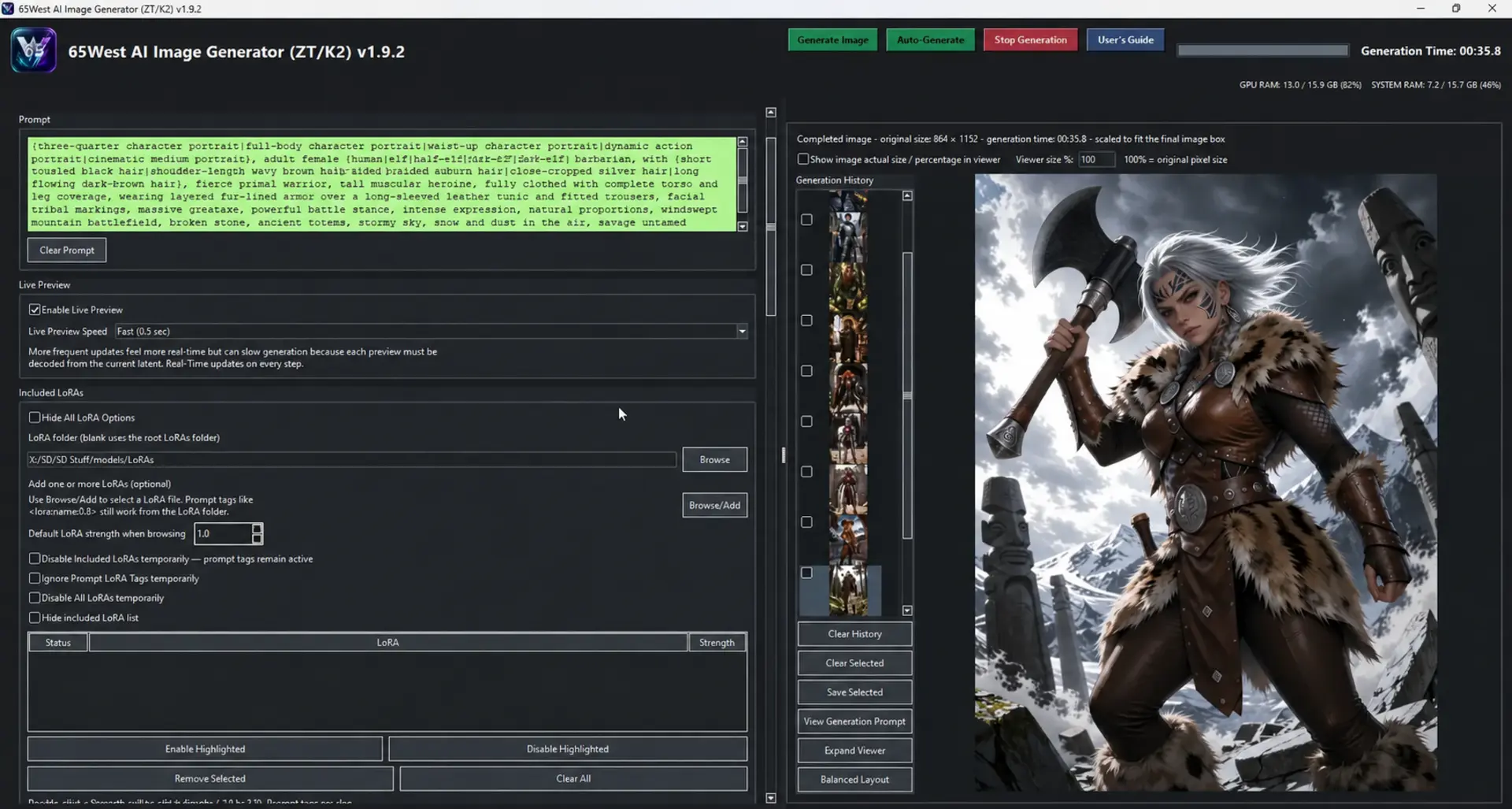
65West AI Image Generator (ZT/K2) brings compatible Z-Image Turbo and Krea 2 models into one focused creative workstation. Switch model families with family-aware settings and VAE handling, generate and compare compatible LoRAs, refine detail and lighting, use face tools, upscale, and present your work without a per-image 65West cloud charge.
 View full size ↗
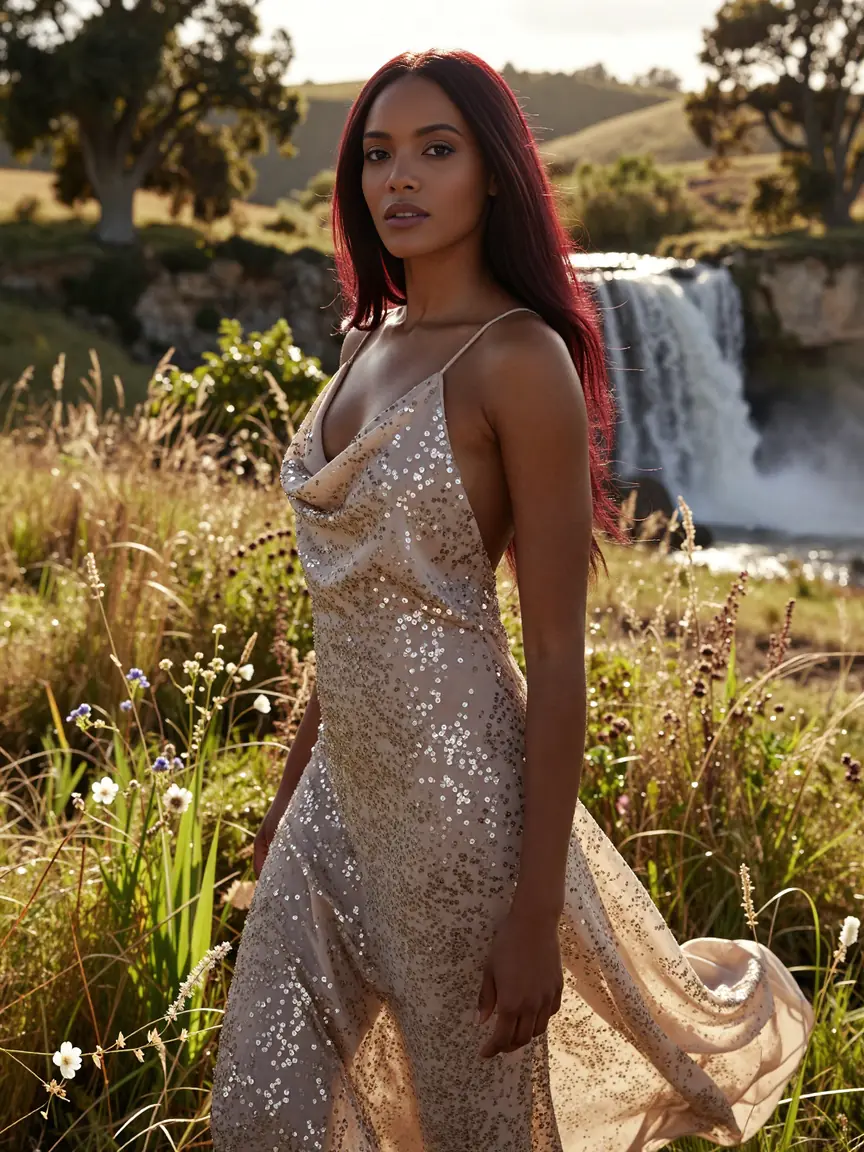
This gallery features genuine images created with 65West AI Image Generator—not illustrative stand-ins. Each sample demonstrates the creative results possible within the application’s local model workflows.
Open any image to inspect the original full-resolution sample. Every gallery entry is genuine application output selected for the website.
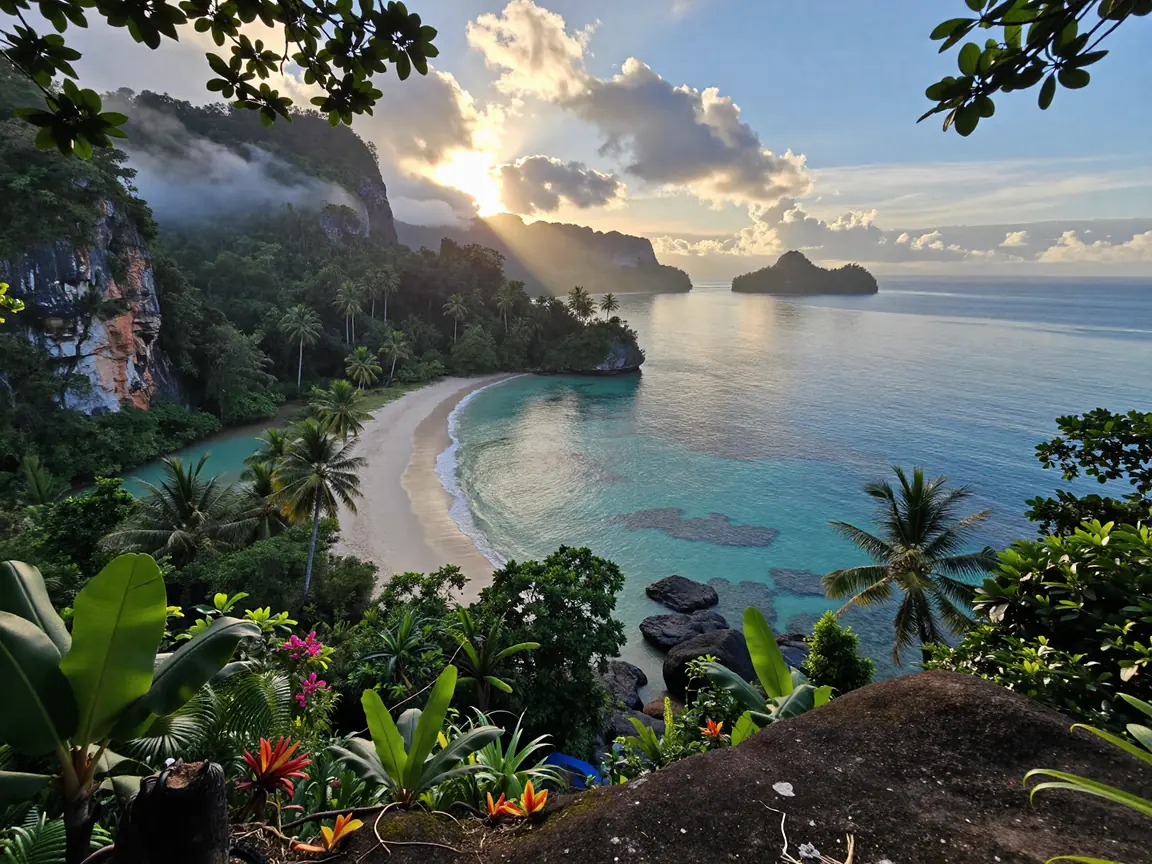
A wide environmental study with layered foliage, mist, shoreline detail, reflective water and natural light.
 View full size ↗
 View full size ↗
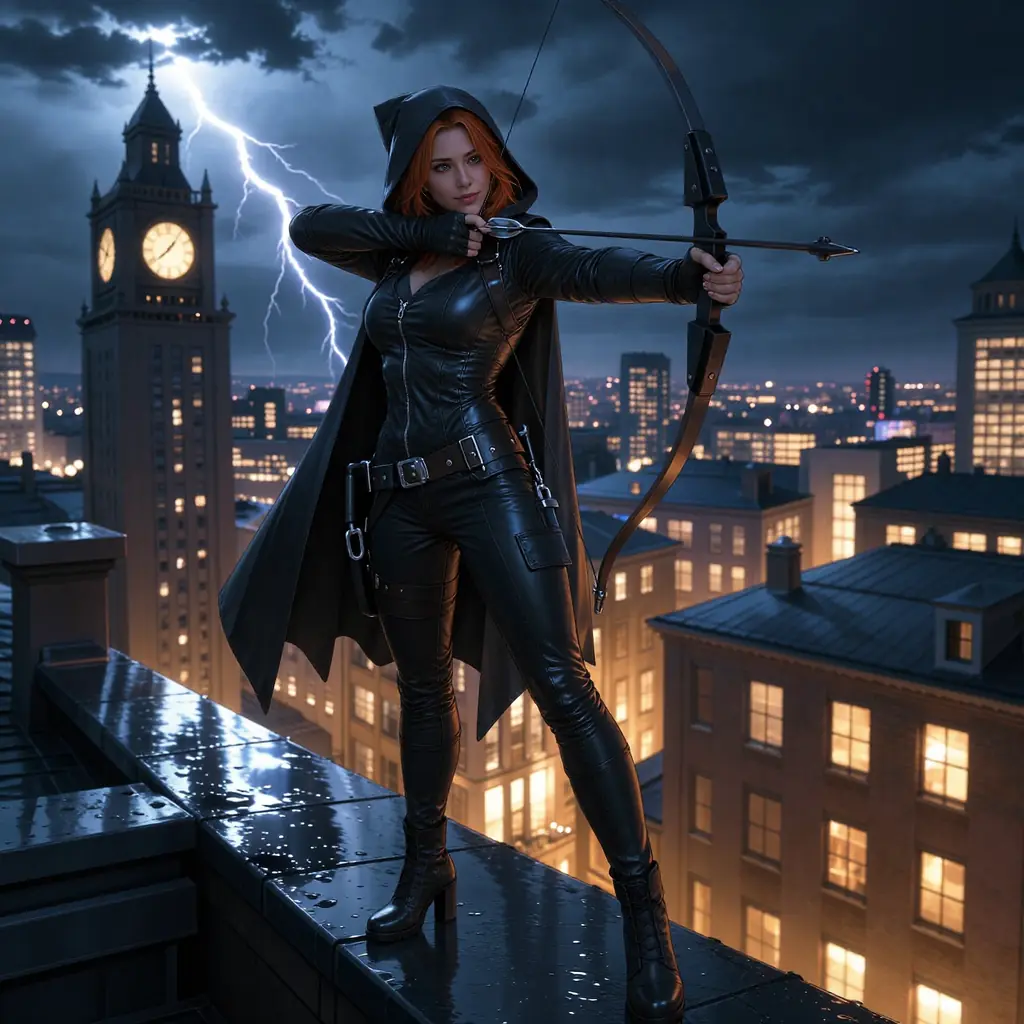
A dramatic character scene balancing a clear action pose, reflective rain detail, layered architecture and high-contrast lightning.
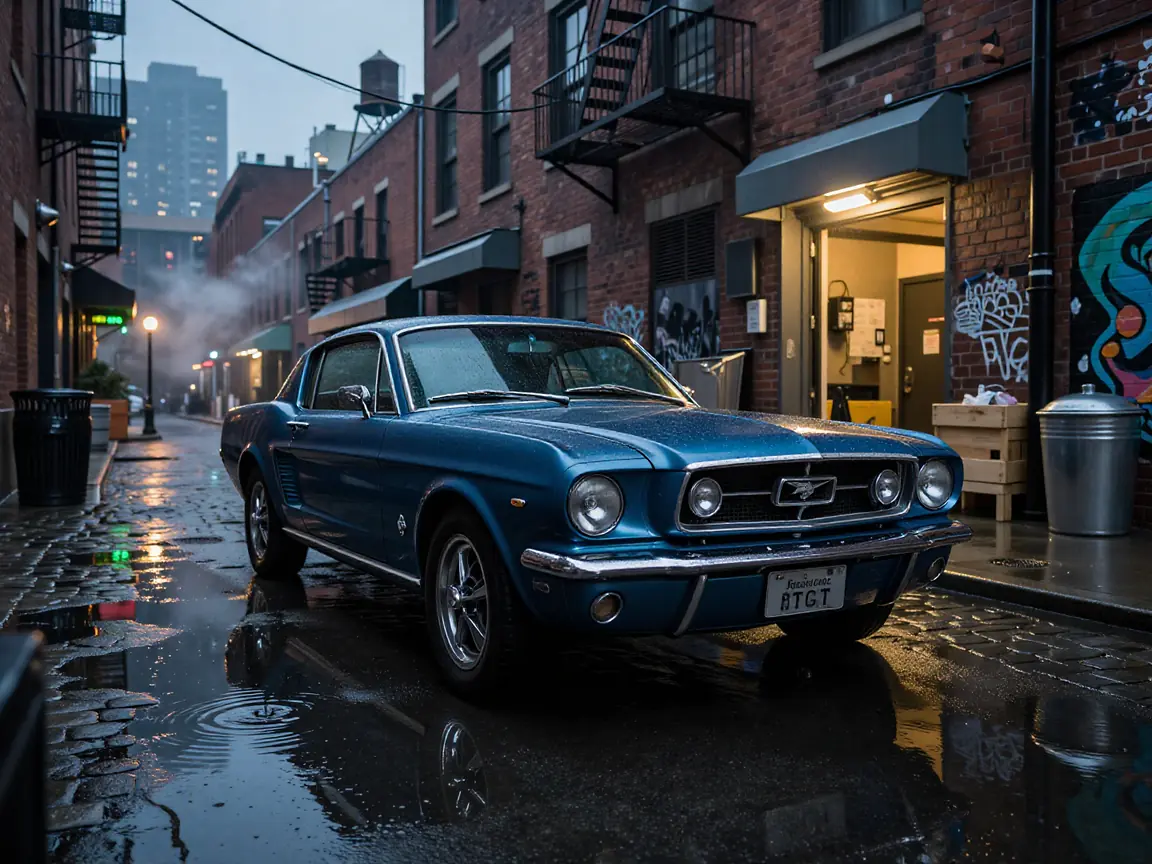
A cinematic 1965 Ford Mustang study combining wet-road reflections, brick textures, alley depth, atmospheric steam and contrasting cool and warm light.
 View full size ↗
 View full size ↗
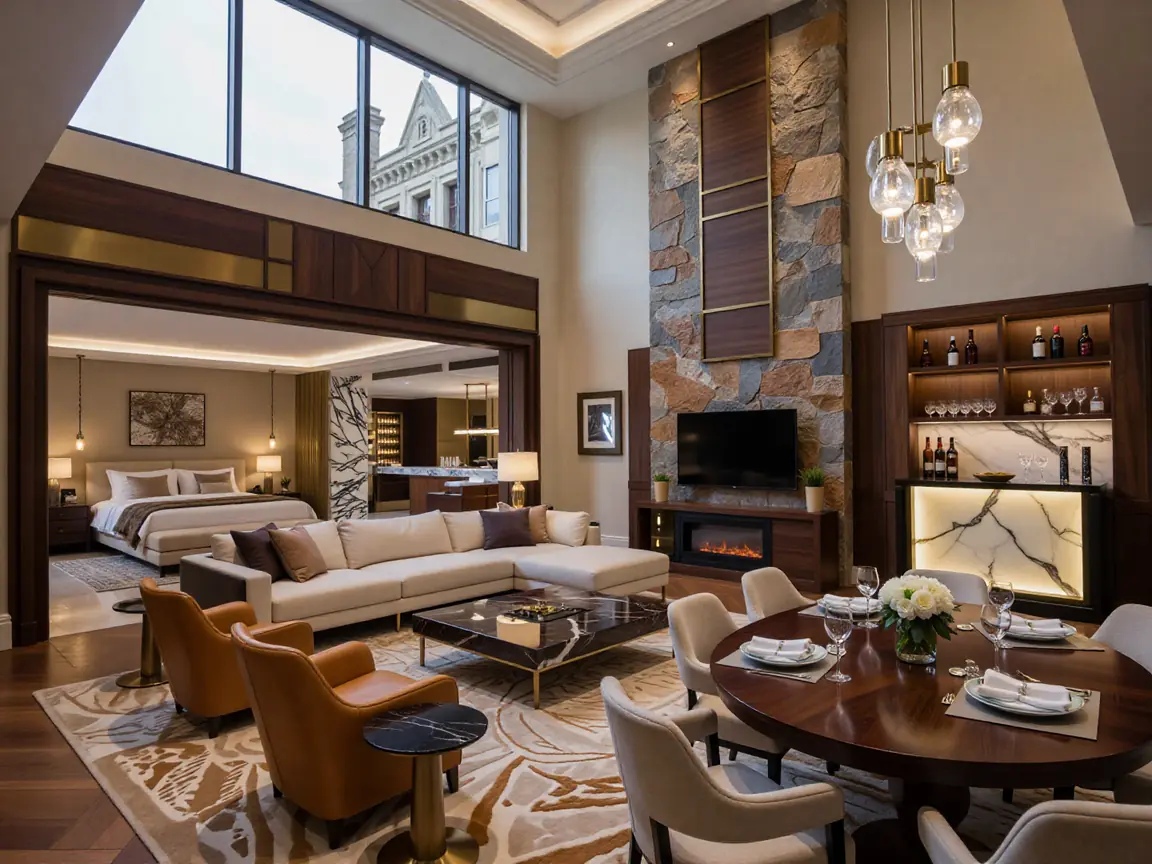
A wide presidential-suite concept with connected living, dining, sleeping and hospitality zones. The image balances architectural scale with detailed stone, wood, marble, upholstery, glass and warm integrated lighting.
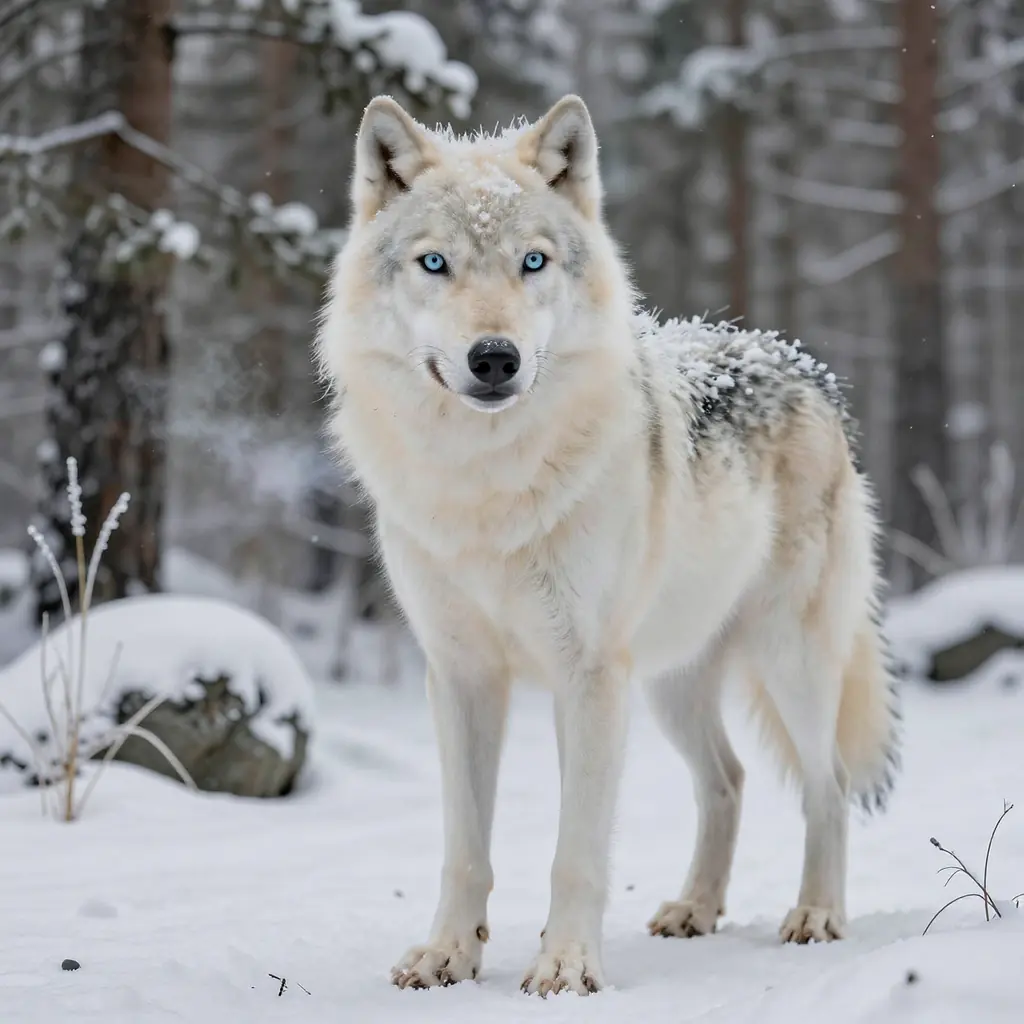
A square wildlife study centered on a white wolf with pale blue eyes. Layered fur, clinging snow, subtle tonal variation and a softly defocused forest keep the subject crisp without flattening the environment.
 View full size ↗
 View full size ↗
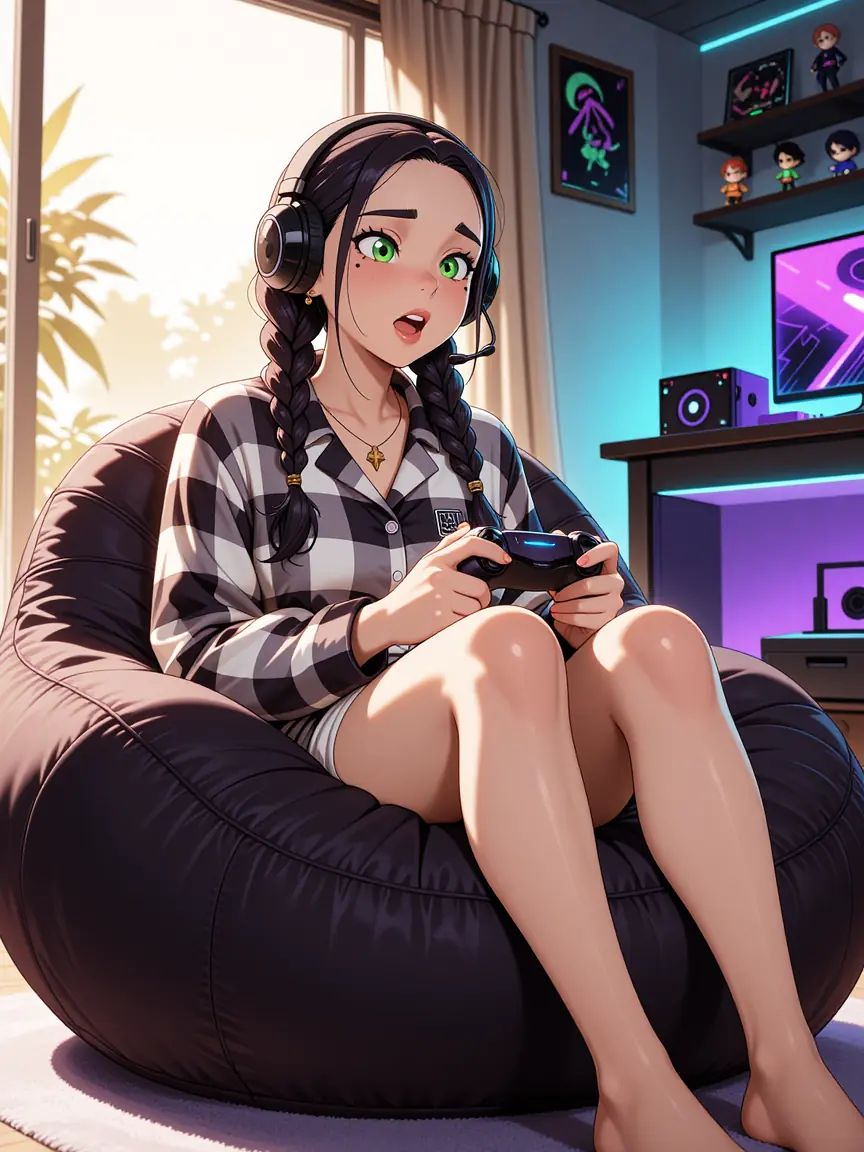
A polished animation-inspired character scene with an expressive central pose, clean stylized rendering and a fully developed gaming environment. Warm window light meets cyan and violet accents to give the room depth, energy and a strong visual identity.
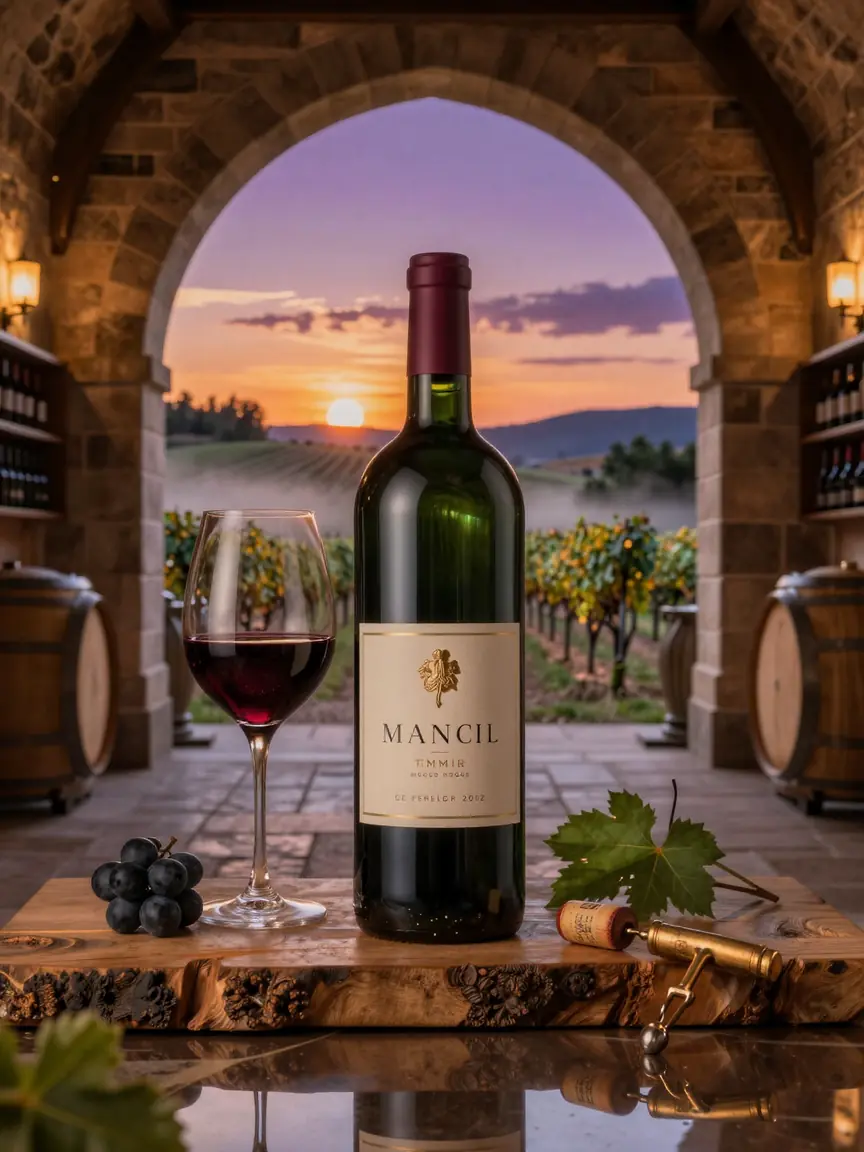
A premium wine-advertising concept staged inside a stone cellar at sunset. Reflective glass, polished metal, natural wood, fruit and vine details create a convincing commercial composition, while the vineyard beyond adds atmosphere and a clear sense of place.
 View full size ↗
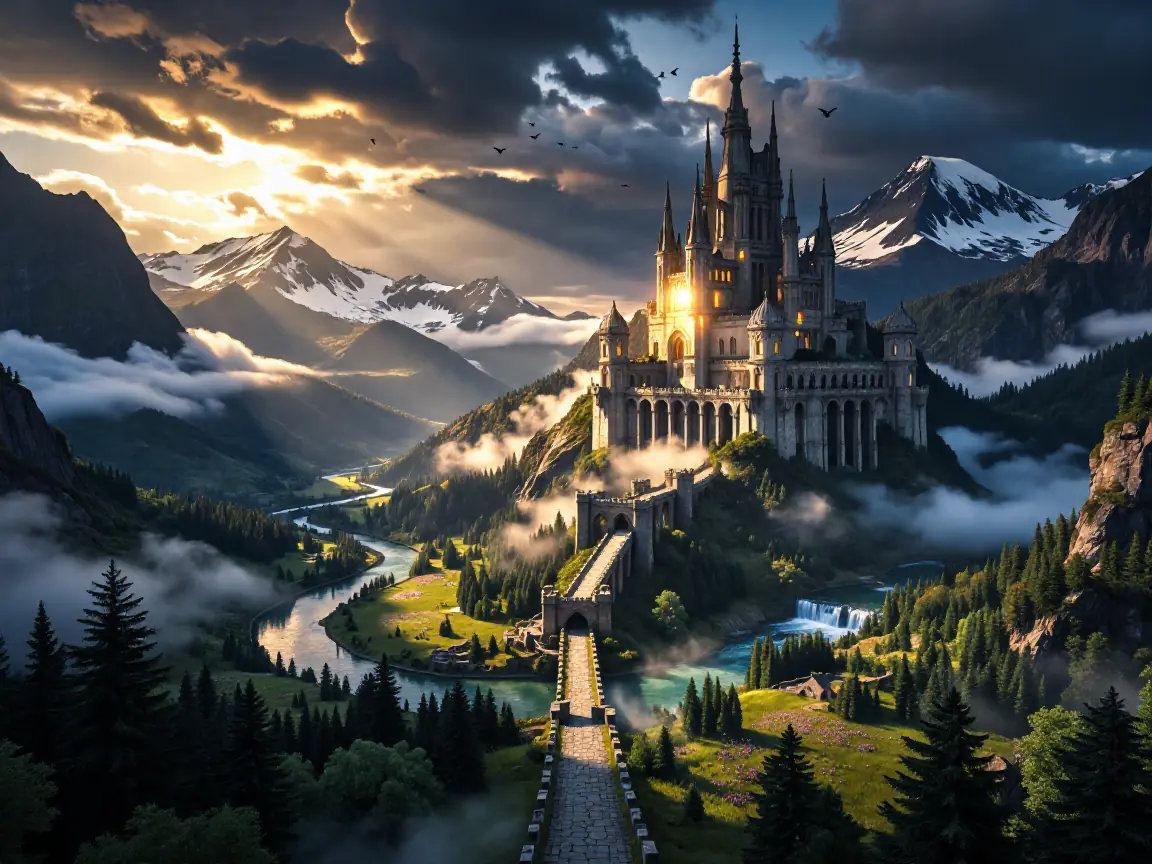
A cinematic mountain kingdom built around a towering castle, winding river and long stone approach. Layers of forest, mist, waterfalls and snow-covered peaks create scale and depth, while the break in the storm directs warm light toward the architectural focal point.
 View full size ↗
 View full size ↗
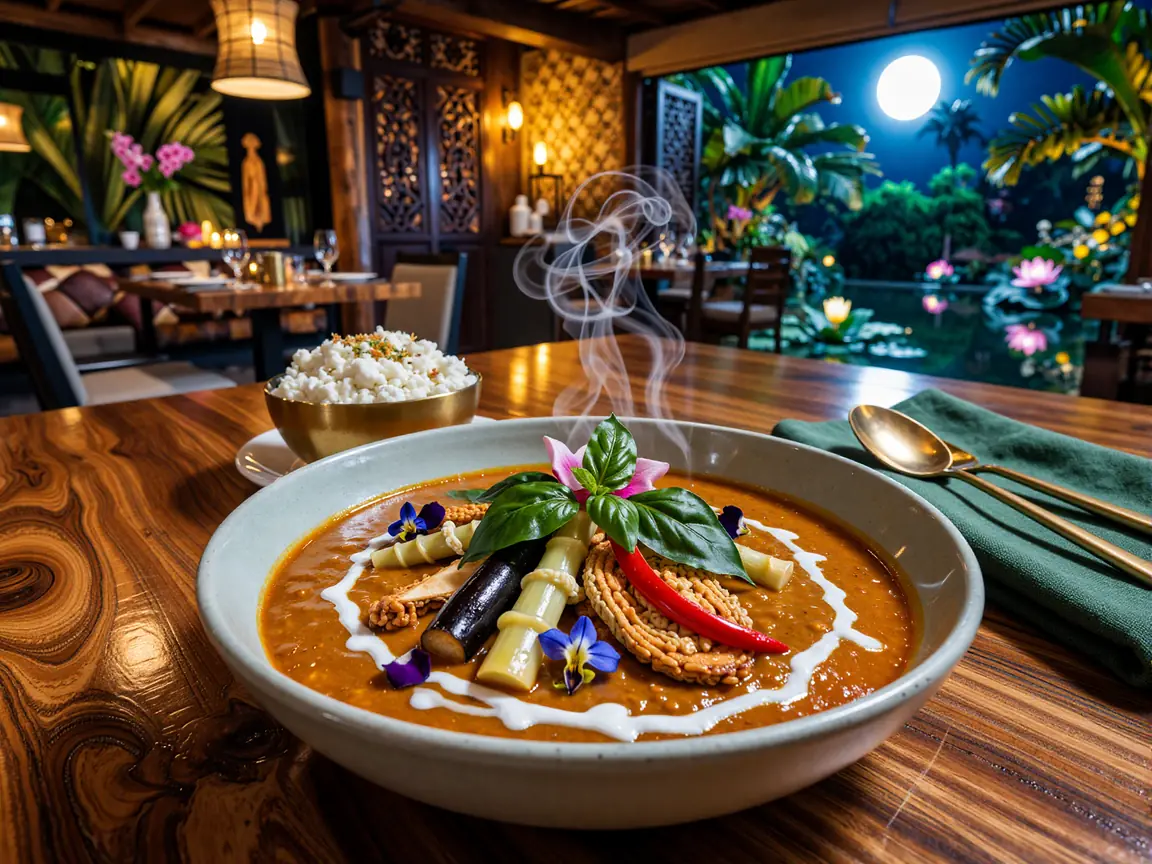
A restaurant-quality Thai curry presentation built around color, texture and atmosphere. Rising steam reinforces the sense of a freshly served dish, while polished wood, brass tableware, carved interiors and a moonlit tropical garden turn the meal into a complete hospitality scene.
Run generation on your own compatible hardware with local model, VAE, LoRA, face-reference and output folders. After activation, there is no per-image 65West generation charge in the creative loop.
The controls that matter for Z-Image Turbo and Krea 2 live in one desktop workspace: model family, prompt, dimensions, seed, sampler, compatible LoRAs, refinement, face tools, post processing, upscaling, history and viewing.
Reuse the last cached latent and generation state while changing the active LoRA stack. Compare a style or strength against the same underlying generation instead of guessing.
From first idea to refined output, 65West keeps the work inside one session.
Move between compatible Z-Image Turbo and Krea 2 models with family-aware defaults, scheduler behavior, automatic VAE selection, and a deep pipeline reset when changing families.
Use recommended 3:4 portrait and 4:3 landscape presets or set custom dimensions, then control steps, fixed or random seeds, sampler recipes, and scheduler shift.
Keep generating new variations continuously. Pair it with random-seed mode for an ongoing stream of fresh results until you stop.
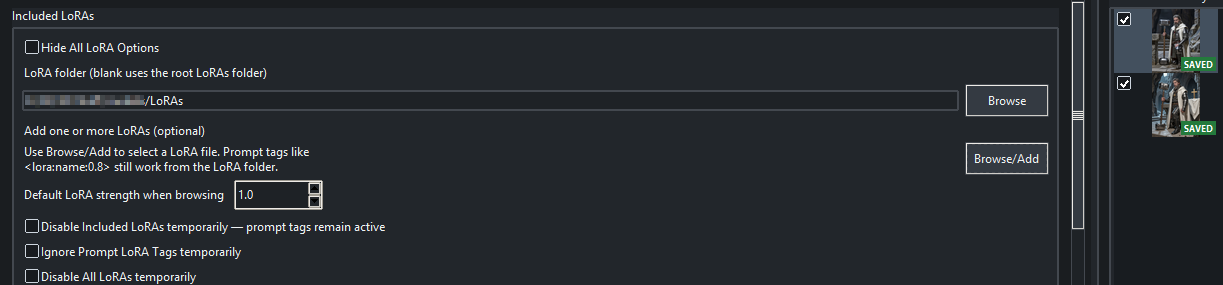
Add compatible LoRAs, edit strengths directly, and independently disable Included LoRAs, ignore prompt-tagged LoRAs, or pause every LoRA without deleting your setup.
Build reusable prompt variation with wildcard text files and nested inline alternatives for clothing, lighting, locations, styles and more.
Send the completed generation through a genuine image-to-image diffusion pass using the already-loaded model components—then return it to your chosen final size.
Choose a source identity manually or call it directly from the prompt with a <face_ref:...> tag. Source analysis is cached for repeated use.
Run GFPGAN restoration after generation and Face Swap, with a fidelity control that balances restoration strength against identity preservation.
Review session thumbnails, inspect the generation prompt and metadata, save selected full-size images, identify already-saved results, and avoid accidental loss on exit.
Watch sampling in Slow, Normal, Fast, or Real-Time mode. Move the preview anywhere over the workspace and let the application remember its position.
Finish with optional tone, contrast, and brightness correction, saturation or grayscale controls, and repeatable seed-based film grain.
Use a compatible local PyTorch super-resolution model from 1.5× through 4.0×. Memory-safe tiling protects the completed normal-size image if upscaling cannot finish.
Inspect an image at actual size in a frameless viewer with on-demand scrollbars, or turn the session into a fullscreen slideshow.
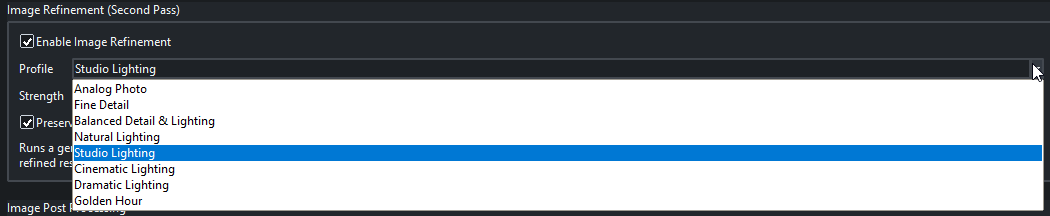
See the slideshow viewer ↓Image Refinement reuses the already-loaded compatible model components for an image-to-image stage that can improve detail, lighting, tonal separation and depth. Memory is checked before the pass, and the program can automatically step down from 1.50× to 1.25× when headroom is unsafe. Optional final super-resolution upscaling is a separate finishing stage.
 Open full size ↗
Build prompts around subject, appearance, action, environment, composition, lighting and medium. Add inline choices, wildcard tags, LoRA tags or a face-reference tag when you need variation or identity control.
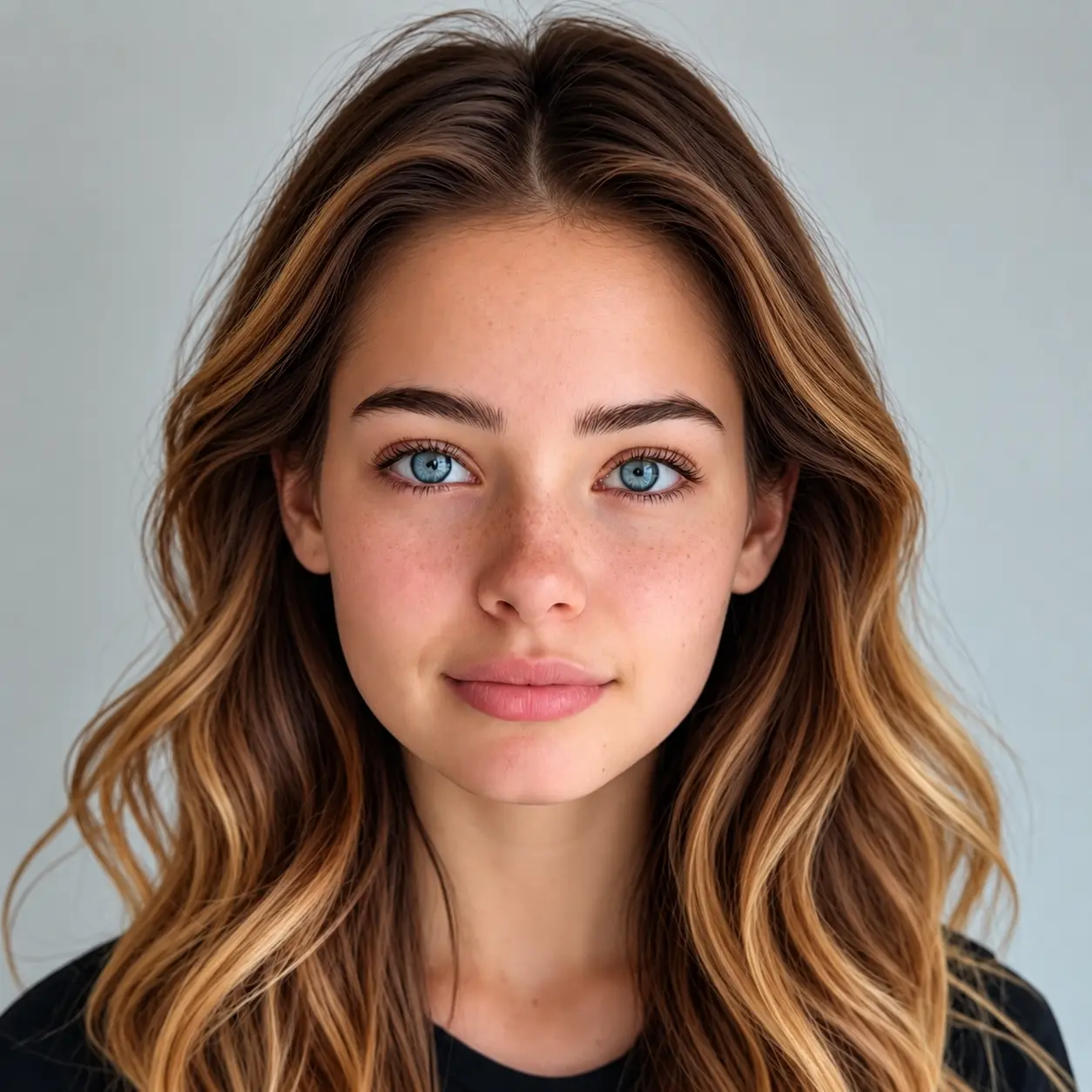
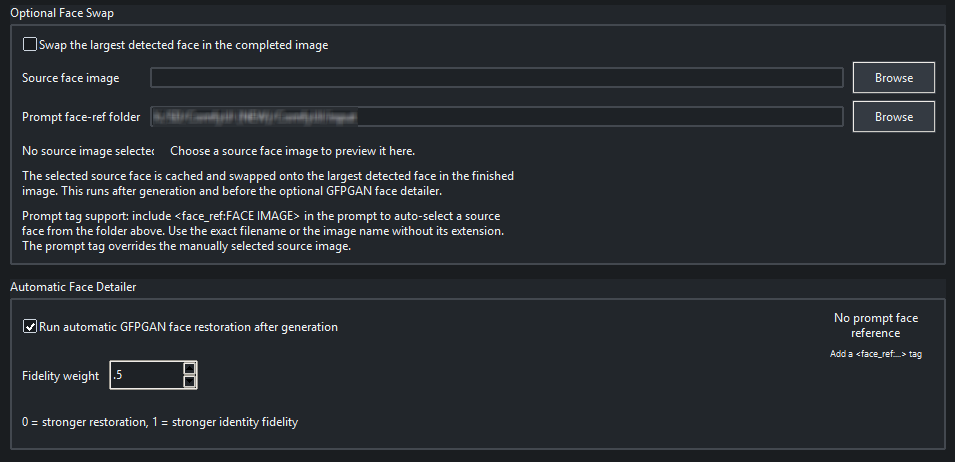
Select a source manually or call it from the prompt with a face-reference tag. The application analyzes and caches the source, then replaces the largest detected face without sending the image to a 65West cloud service.
 View source ↗
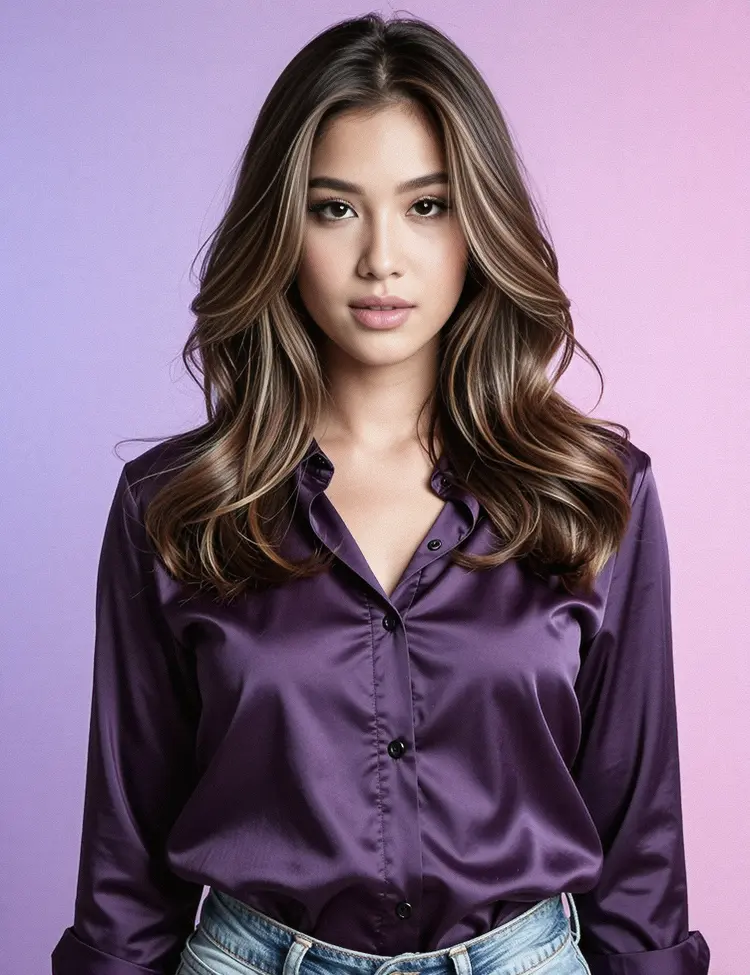
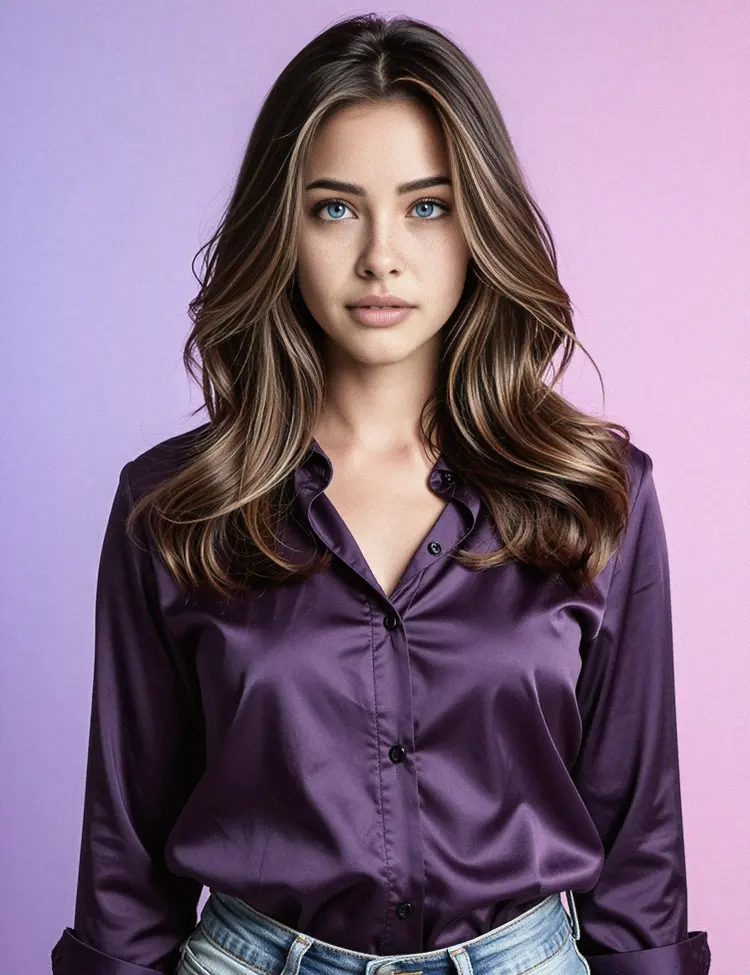
The optional GFPGAN Face Detailer runs after generation and any optional Face Swap. Its fidelity control lets you balance restoration against identity preservation instead of sending the image through a separate application.
This comparison uses genuine output from 65West AI Image Generator (ZT/K2). No fidelity value is claimed because the setting was not recorded with the supplied example.
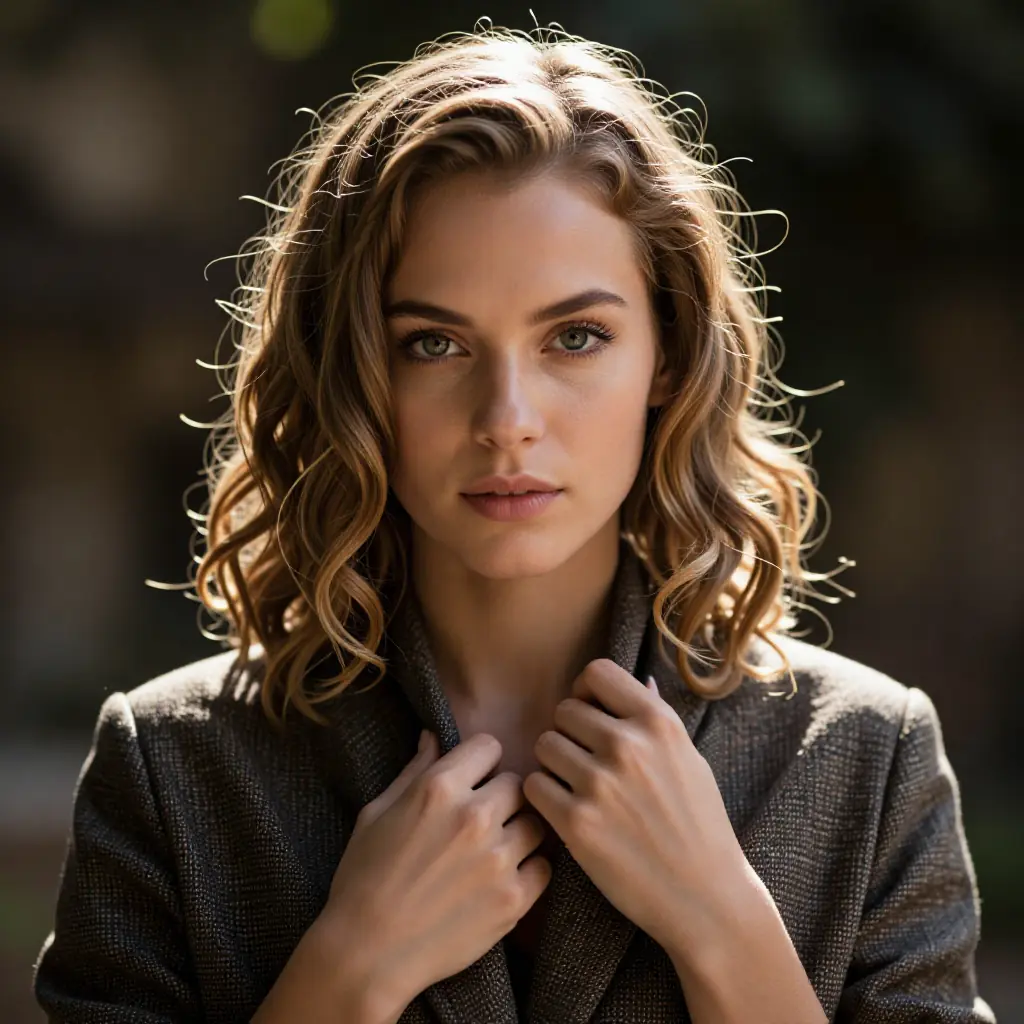
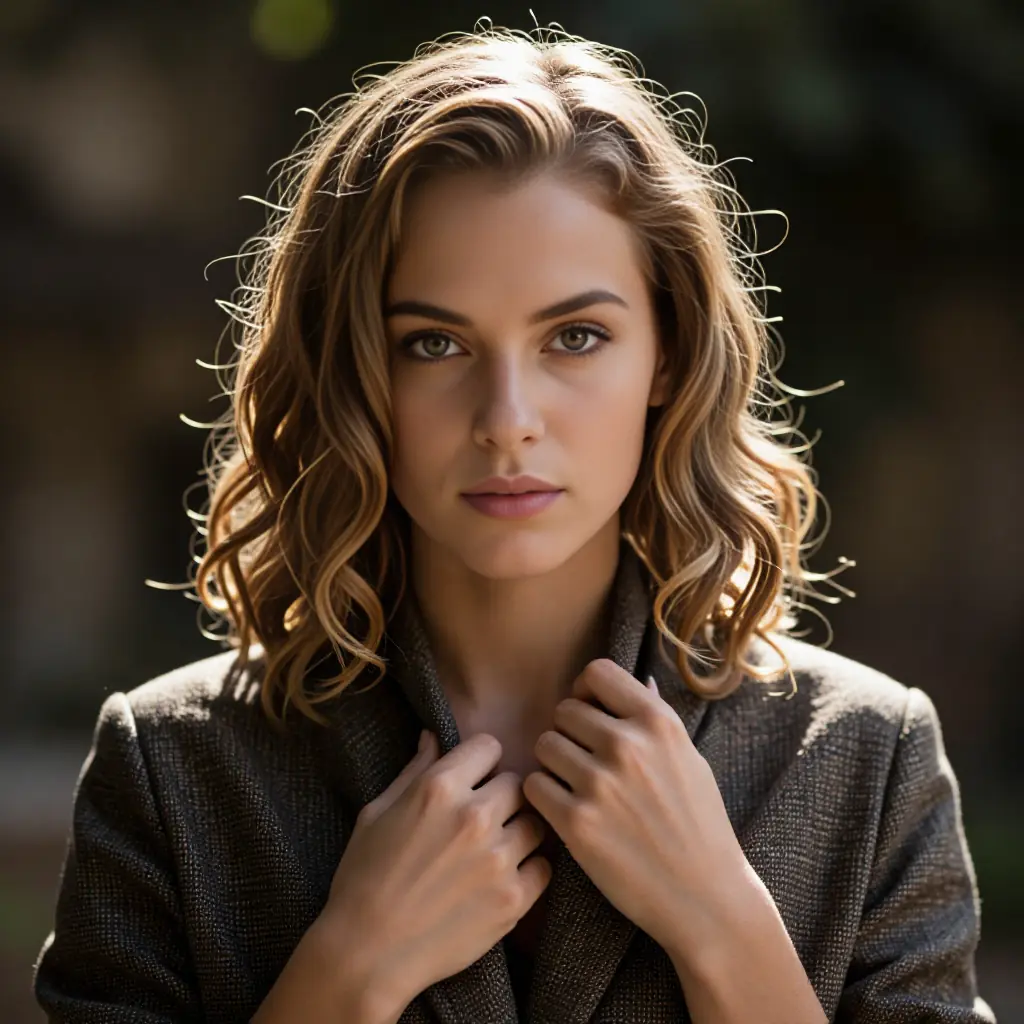
 Open full size ↗
Select a source manually or with a prompt face-reference tag, reuse its cached analysis, optionally swap the largest detected face, and tune GFPGAN restoration against identity fidelity—all without leaving the generation workspace.
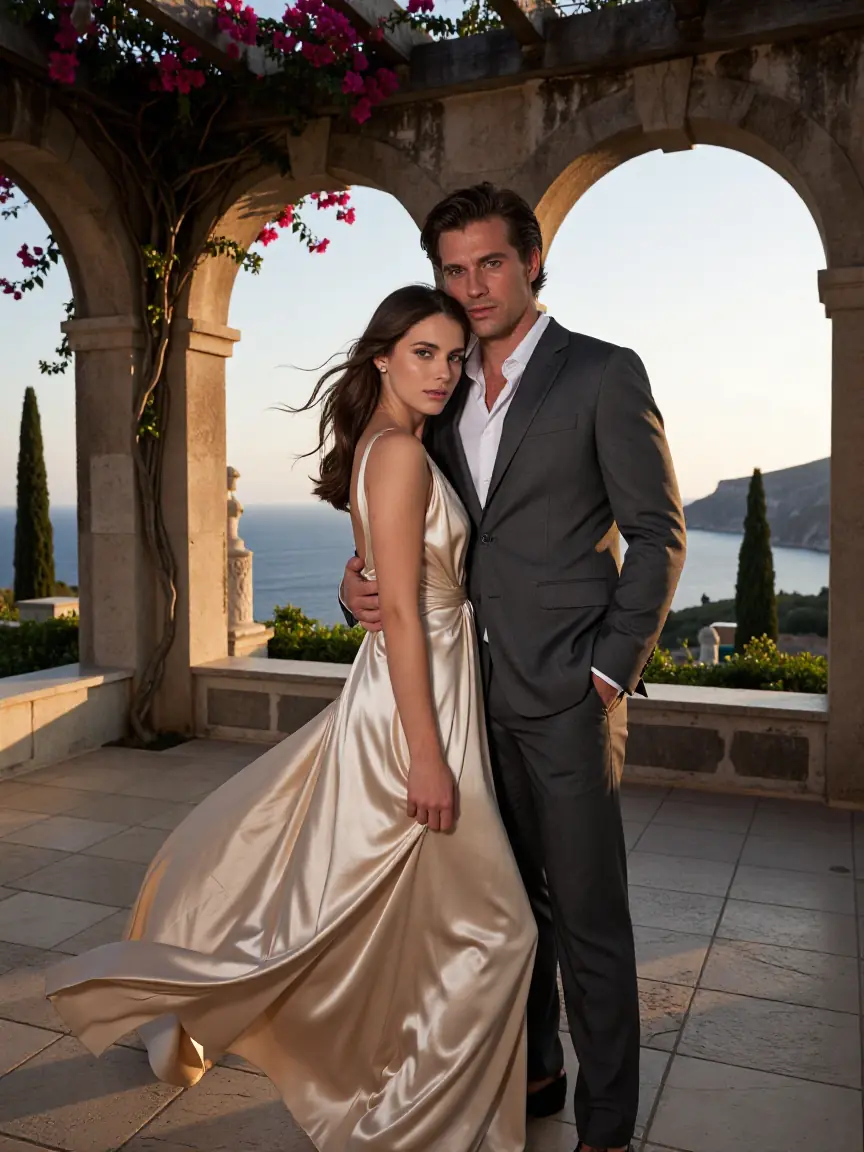
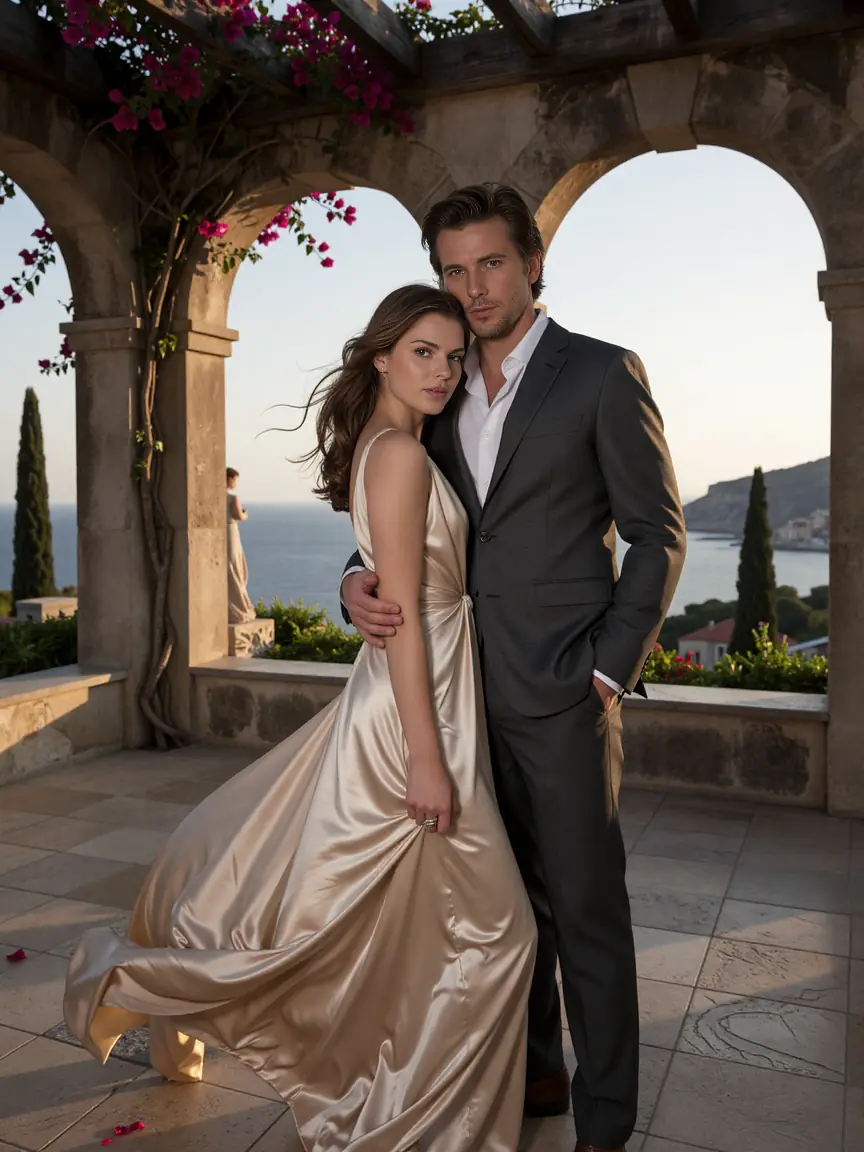
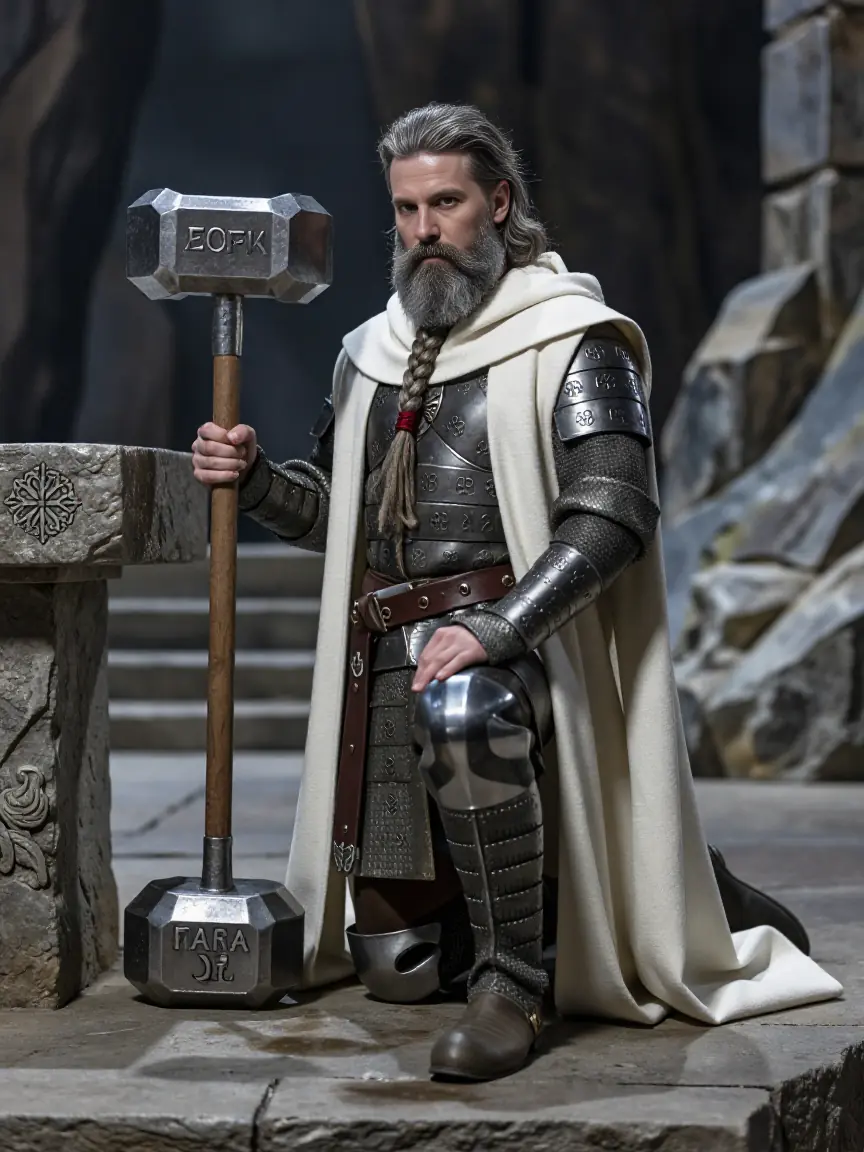
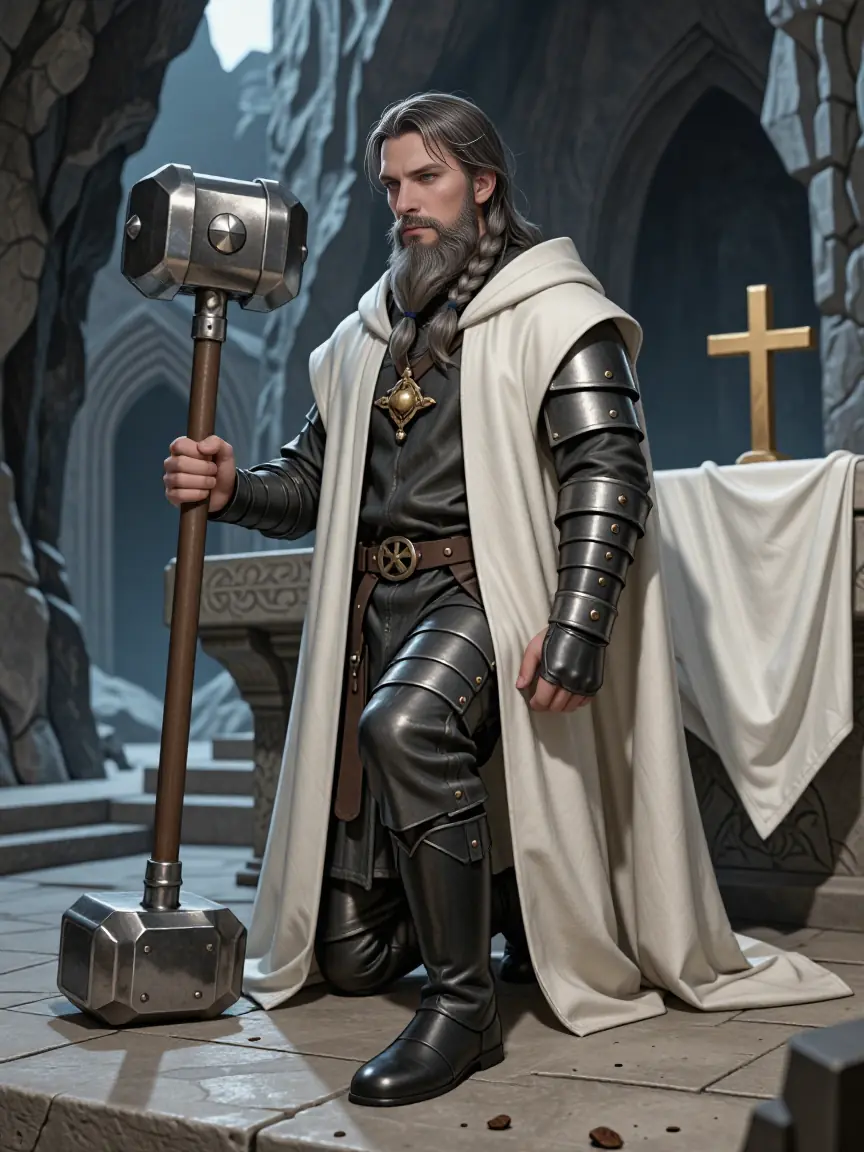
Reuse the cached generation state, apply the LoRAs currently selected in the interface, and compare the new result against the baseline. This genuine application example shows the creative influence clearly—without presenting two unrelated generations as a test.
 View full size ↗
 View full size ↗
 Open full size ↗
Build a local stack, edit strengths directly, use prompt tags, pause selected sources without clearing the setup, and keep comparison results visible in Generation History.
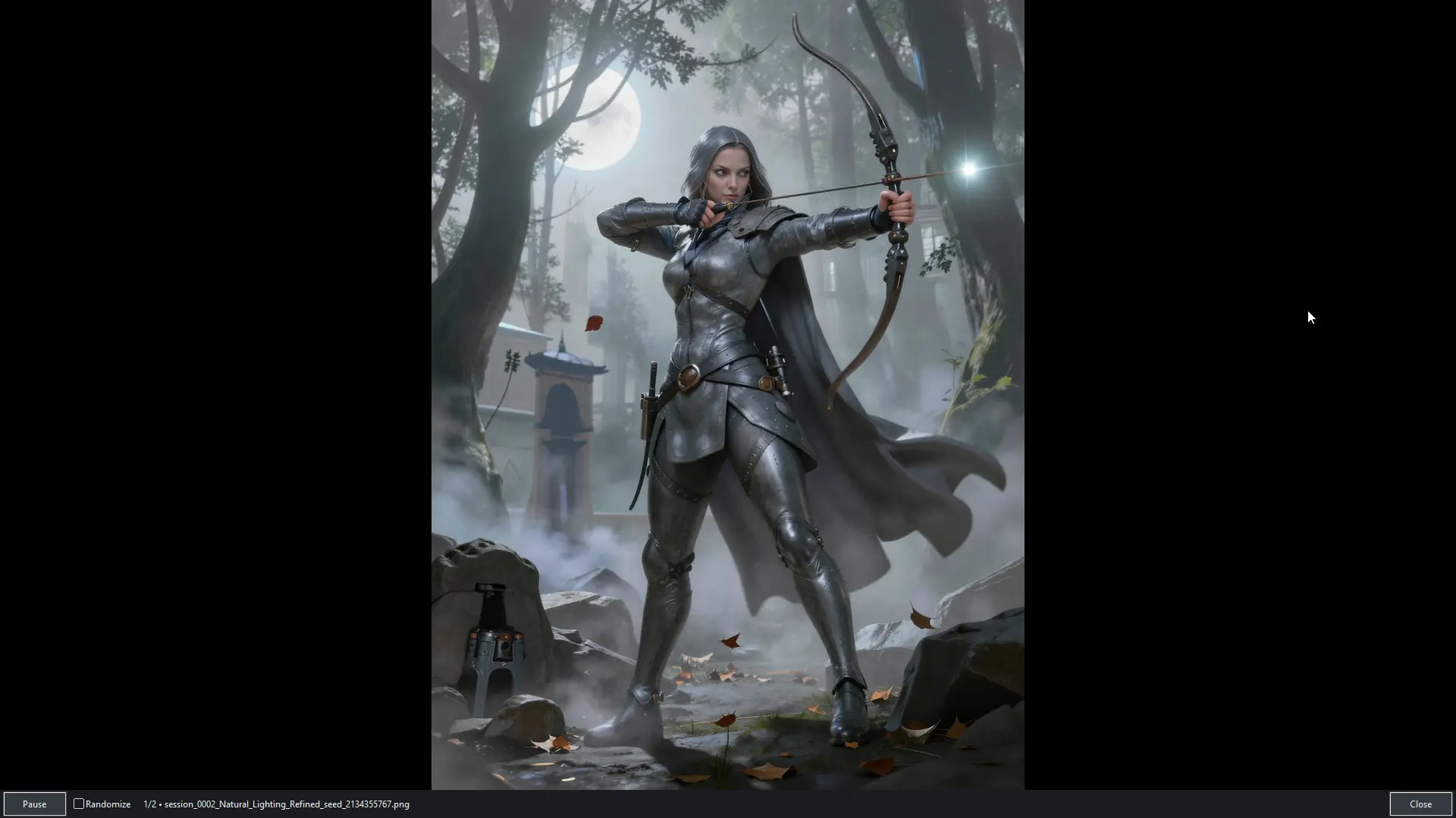
A clean black presentation canvas keeps attention on the image while essential slideshow controls remain available along the bottom edge.
Generation quality is only part of the experience. 65West also handles the practical details that make a local AI tool comfortable to live with.
Unfamiliar configurations are safety-tested, while compatible model switches can reuse the text encoder and unchanged VAE. Sampler and scheduler changes reconfigure the cached pipeline in place.
Auto, an optimized 16 GB path, high-VRAM BF16, CPU offload and sequential CPU offload give you multiple ways to balance speed and memory pressure.
An optional cache policy—enabled by default—can keep only the active standalone model’s optimized Transformers cache and report reclaimed disk space.
GPU RAM, system RAM, generation progress and elapsed time stay visible while you work.
The app tracks what has and has not been saved and only warns at exit when unsaved Generation History items still exist.
Live-preview position, layout choices, hidden groups, LoRA states and notes are remembered so the workspace feels like your own.
Cloud image services are convenient, but many tie the workflow to recurring plans, monthly credits or provider limits. A local-first tool shifts the economics: your compatible GPU does the rendering, and the software becomes the workstation around it.
For the best Z-Image Turbo and Krea 2 experience, use the recommended configuration below. Lower-spec systems may work with CPU-offload modes, but generation will be slower and available image sizes may be more limited.
The application is designed for a current 64-bit Windows 11 desktop with an up-to-date NVIDIA graphics driver.
A 16 GB NVIDIA RTX GPU, such as the GeForce RTX 5060 Ti 16 GB or better, is recommended for the optimized 16 GB workflow.
32 GB is recommended for normal local generation. 64 GB provides additional headroom for CPU offload, larger workflows, and model switching.
An NVMe SSD is recommended. The supported model families can use roughly 70 GB, with additional space needed for LoRAs, VAEs, caches, upscalers, and generated images.
A recent Intel Core or AMD Ryzen processor is recommended. The GPU performs the main generation workload, while the CPU supports loading, offload, and application tasks.
Use models, VAEs, and LoRAs made for the selected Z-Image Turbo or Krea 2 family. Assets from Stable Diffusion, SDXL, or the other family are not automatically interchangeable.
A straightforward perpetual license fits a local desktop generator better than charging users every month just to keep using their own GPU.
No payment card, generation-count limit, time limit, or intentionally reduced output quality. Demo images contain a translucent tiled 65West watermark. Activating a license removes the watermark from future generations.
Checkout is securely provided by Paddle, the merchant of record. Paddle handles payment processing, applicable taxes, and the purchase receipt.
The customer sees the exact product, license type, update period and total price before continuing.
The email becomes the purchase receipt and license-delivery destination.
Paddle processes the payment and applicable tax. 65West does not receive or store your complete card details.
Your license key is delivered by email. Enter it in the installed Demo to remove the watermark from future generations—no reinstall is required.
No. There is no generation-count limit or per-image 65West charge. The Demo remains fully functional and places a translucent tiled 65West watermark on completed images. A purchased license removes that watermark from future generations.
The ZT/K2 release supports compatible Z-Image Turbo and Krea 2 models. It applies family-aware defaults and VAE handling when you switch. LoRAs and related assets must be compatible with the active family; Krea 2 does not support negative prompts.
The Demo has no image-count or time limit. Its restriction is a translucent tiled 65West watermark applied to completed, displayed, preserved, and saved images. Activating a license removes the watermark from future generations without requiring reinstallation.
Yes. The built-in fullscreen slideshow viewer presents session images against a clean black canvas with Pause, optional Randomize, current-image position, filename, and Close controls. A separate actual-size viewer is also available for close inspection.
It solves a different usability problem. ComfyUI is a highly modular node-based engine; 65West is a focused desktop interface for Z-Image Turbo and Krea 2 workflows, with model-family switching, compatible LoRAs, refinement, face, history, and viewing tools organized into one application.
Not automatically. The user guide specifically warns that LoRAs built for unrelated Stable Diffusion or SDXL UNet architectures are not inherently compatible with Z-Image Turbo.
It is a genuine second image-to-image diffusion pass, not a simple final enlargement. It can target detail, lighting, tone and depth through selectable profiles and strengths while reusing the already-loaded compatible model components.
Yes. Optional Face Swap uses a prompt face-reference tag and can be followed by GFPGAN Face Detailer processing. Users should only use face images they have the right and consent to use.
Yes, optionally. Image Refinement is a second diffusion pass that works on image content, while final upscaling is a separate last-stage process using a compatible local PyTorch super-resolution model. The requested output size can range from 1.5× through 4.0×. Preserve Original-Size Image is disabled by default.
Setup can download supported default models after any required provider access has been accepted. The application also supports compatible local model libraries and supported repository identifiers. Third-party models, VAEs, LoRAs, and other assets remain subject to their own licenses and terms.
The software license and the rights to generated output are separate issues. Output rights can depend on the model, LoRA and other assets used, plus applicable law. Customers should review the license terms for every third-party model or asset in their workflow.
Choose a model family. Generate. Refine. Compare. Save. Stay in control.