65West Virtual Vinyl Player
Comprehensive User's Guide · Release 1.5.0
1. Getting Started
- Extract the complete release ZIP into a normal writable folder.
- Double-click
65West Virtual Vinyl Player.exe. - On first launch, allow the application to download and prepare its private runtime. This may take several minutes.
- Open the Album Crate and load an indexed album by double-clicking its cover or dragging its cover onto the player.
Windows Security and Microsoft Defender SmartScreen
During installation or first launch, Windows may display “Windows protected your PC” because Microsoft Defender SmartScreen does not yet recognize the reputation of a new or independently distributed application. This warning does not by itself mean that the installer contains malware.
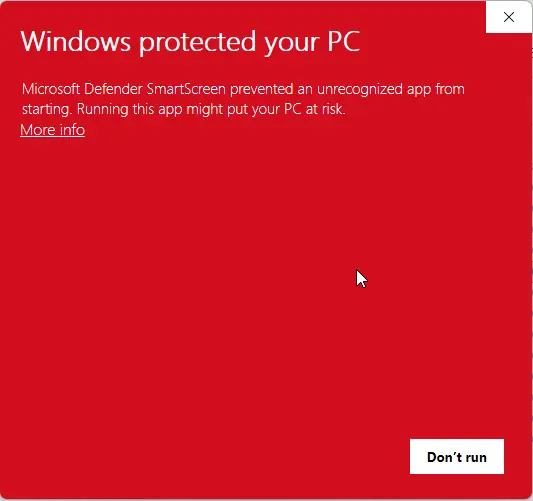
- Select More info in the SmartScreen window.
- Review the displayed application name and confirm that it is the expected 65West Virtual Vinyl Player installer. Windows may identify the publisher as unknown until the installer has established a recognized signing reputation.
- Select Run anyway.
- If Windows User Account Control asks for permission, confirm that you intentionally started the official installer, then select Yes.
You do not need to disable SmartScreen, Microsoft Defender, or any other Windows security feature. The official 65West installer is intended to be installed with Windows security protections left enabled.
Supported audio files
MP3, FLAC, WAV, M4A, AAC, OGG, Opus, WMA, AIFF, and AIF files can be indexed. Final playback support depends on the Windows Qt multimedia backend and installed system codecs.
Demo and Perpetual Licensing
Without an active license, Virtual Vinyl Player operates as a fully featured demo. Each track plays from its beginning for up to 60 seconds and then automatically advances using the same tonearm, side-flip, record-change, and Album Queue behavior as normal playback. Tracks shorter than 60 seconds play to their natural end.
The timeline and direct groove cueing remain available in demo mode, but positions beyond the first 60 seconds are held within the demo portion. Your Album Crate, queue, saved album playlists, artwork, equalizer settings, themes, and music files are not restricted or modified.
Buy and activate
- Select Buy Full Version in the album panel or Help menu to open the purchase page.
- After receiving a Virtual Vinyl Player license key, select License Management.
- Paste the key and choose Activate This PC. A valid license immediately enables full-track playback.
The player periodically validates an activated license online and stores a signed authorization for offline use. The planned offline authorization period is 30 days. If it expires before the service can be reached, the application temporarily returns to demo mode; reconnect and choose Validate Online to restore licensed playback.
A refunded or revoked license returns the application to demo mode. A license involved in a chargeback is suspended while the payment dispute is resolved.
2. Main Interface
The application launches maximized in a two-panel layout.
| Area | Purpose |
|---|---|
| Left album panel | Album artwork, metadata, track list, playback controls, timeline, volume, and vinyl-surface controls. |
| Right turntable panel | The simulated platter, vinyl, generated label, grooves, tonearm, stylus, and stationary turntable hardware. |
| Album Crate icon | Opens the collection browser in the space normally occupied by the virtual turntable. |
| Return-to-crate icon | Stops playback, parks the tonearm, and clears the current album without deleting it. |
| Album Queue | Builds, reorders, saves, and plays a sequence of complete albums from the crate. |
The former bottom status strip is hidden so playback and artwork source text no longer occupy the lower edge of the window.
3. Loading an Album
Albums are loaded exclusively through the Album Crate. Each album should be stored in its own directory beneath one of the crate's indexed music folders.
- Double-click an album cover in the Album Crate.
- Drag an album cover from the Album Crate onto the player's album area.
External folders dropped from File Explorer are intentionally ignored. Albums can also be loaded directly from File → Recent Albums when the saved album is still present in the Album Crate index. The left-panel cover area displays the album artwork without a separate album-title caption; title information remains available on the simulated record label, in the crate, and in player status information. Tagged disc and track numbers determine playback order. If tags are missing, numbered filenames are used as a fallback. Loading an album never edits its music files.
4. Building and Using the Album Crate
Shortly after launch, the player automatically prepares the saved crate index and generates compact cover thumbnails in the background. The crate interface is then built off-screen, making its first opening much faster. Cached thumbnails are reused on later launches and are regenerated automatically when source artwork changes. A directory must contain at least two supported audio files to be indexed as an album; single-track folders are treated as loose singles and omitted without changing the files.
- Click the crate icon, choose File → Open Album Crate, or press Ctrl+O.
- Select Music Library Locations and choose the main directory containing the complete music library.
- Check one or more immediate subdirectories. Each checked directory, including every artist and album folder beneath it, is scanned recursively.
- Select OK to save the locations and begin scanning. The selected folders are remembered for later rescans.
- Double-click a cover to load it, or drag the cover toward the album area.
Hover over an album cover to see its artist, album title, track count, genre, and complete numbered track list. Media-folder paths are not displayed. After installing an update that adds track-title indexing, run Rescan Collection once to populate these lists.
Crate tools
| Tool | Use |
|---|---|
| Search | Type the complete artist, album title, year, genre, or folder text, then click the magnifying-glass button to search. Pressing Enter performs the same explicit search. The album grid does not change while text is still being typed. |
| Sort | Arrange albums by artist, album, year, or recently indexed. |
| All Albums | Shows the complete indexed collection. |
| Needs Review | Shows folders whose album metadata conflicts or may need retagging. |
| Genre checkboxes | Click the genre button to expand one vertically scrollable checklist beneath the selector and down the far-right side of the crate. Click anywhere on a genre row to check or uncheck it; the overlay remains open and the visible covers update immediately. Click the selector again to collapse it without clearing selections. The filter works alongside All Albums or Needs Review, uses inclusive matching, and includes Select All and Clear. If the button reads No Genres, rescan after adding genre tags to the audio metadata. |
| Music Library Locations | Choose one main music-library directory, then use checkboxes to select the immediate subdirectories included in the crate. Every selection is scanned recursively. Changing the selection removes unselected locations from the next completed index without altering any music files. |
| Rescan Collection | Checks for additions, removals, metadata changes, and missing artwork while reusing valid unchanged entries. Previously indexed single-track folders are removed from the crate. |
| Rebuild Index | Discards the saved index and scans the configured collection again. Music files are not changed. |
| Cancel Scan | Stops after the album currently being indexed. |
5. Album Queue
The Album Queue is docked on the right side of the Album Crate and plays complete albums in order.
- Drag a cover from the crate into the queue, or right-click a cover and choose Add to Album Queue.
- Drag queued rows to reorder them. Select a row and choose Remove, or choose Clear to empty the waiting list.
- Choose Play Queue to load the first waiting album and begin at Track 1. Next Album skips directly to the next waiting album.
- At the end of an album, the platter coasts completely to rest before the next queued album loads and starts.
- Returning the current album to the crate advances to the next queued album. A manually selected album pauses queue mode but preserves the waiting list.
- Save Playlist stores the current waiting order under a name; saving over an existing name requires confirmation. Load Playlist restores it later. The active queue and saved playlists persist between launches.
- Delete Saved Playlist removes a selected saved definition after confirmation. It does not alter the active queue or delete any albums, audio files, or artwork.
While queue playback is active, Full Screen Now Playing shows the next album and the number still waiting beneath the album cover. When the final album ends, it is returned to the crate and the empty platter is shown.
6. Playback and Tonearm Behavior
| Control | Behavior |
|---|---|
| Play / Pause | Cues the selected track or pauses playback. On Pause, the stylus lifts slightly but remains over its current groove while the platter coasts. Resume advances the audio by the exact groove travel accumulated during that coast, then lowers the stylus and continues. Audio begins only after the tonearm reaches the groove and the shortened stylus-contact cue completes. |
| Previous / Next | Selects another track. The rigid tonearm uses a smooth distance-based sweep of approximately 1.2–2.0 seconds to reach the selected track's real duration-mapped groove position. At arrival, a brief track-touch needle click plays instead of the longer initial stylus-landing cue, then the selected track begins. |
| Stop | Silently stops playback, resets the loaded album to the beginning of Track 1 on Side A, parks the tonearm, and lets the platter coast smoothly to rest. Pressing Play afterward cues Track 1 from its beginning. |
| Stop + Flip | Stops, parks the tonearm, waits until the platter has coasted completely to rest, flips the record, selects the opposite side's first track, and remains stopped. |
| Timeline | Seek within the current track. The stylus follows the matching position inside that track's groove band. |
| Headshell drag | Click and hold the headshell to lift the stylus, drag it inward or outward across the playable grooves, then release. The stylus remains at the exact dropped groove without returning to the track boundary; the player seeks to the matching in-track position, plays the short contact cue, and starts from there. |
| Tonearm design | Uses a rigid straight arm tube with an inward-angled headshell. In the top-down view, the cantilever and needle remain concealed beneath the square cartridge tip, which stays centered over the calculated groove-contact position throughout playback and manual cueing. |
| Volume | Master volume for album music, Vinyl Surface Sound Effects, and stylus contact/lift sounds. |
| Sound Output | Routes album music, vinyl-surface effects, and stylus cues to System Default or a specific playback device detected by Windows. The selection is remembered; if that device is later unavailable, the player returns safely to System Default. |
The simulated record uses a slightly eased visual calibration so the large on-screen disc reads naturally as a 33⅓ RPM LP rather than appearing too fast; audio playback speed and timing are unchanged. Its reflection-free matte black surface retains fine PVC texture, microgrooves, and black track separators without a fixed lighting patch. Track 1 begins close to the outer rim with a compact lead-in area, while actual durations determine the width of every playable track band. The headshell is interactive: its open-hand pointer indicates that it can be picked up, its closed-hand pointer confirms a drag, and radial movement is constrained to the playable grooves on the visible side. On Pause or Stop, platter inertia slows the record smoothly to rest over approximately 2.2 seconds instead of freezing it instantly. During Pause, the player measures the platter's decreasing speed and advances the resume point by the corresponding groove travel (about 1.1 seconds after a complete coast, or less after a partial coast). It can continue into the next track on the same side, but never crosses to the reverse side. Automatic and manual record flips wait for the platter to reach a complete stop before the flip animation begins. During a flip, the complete vinyl layer enlarges smoothly to 120% as it rises, turns over at peak lift, and returns to normal size as it seats. The exposed rubber mat remains unobstructed without an artificial shadow or silhouette. The record surface, grooves, label, label text, and transparent center opening share the same transform, while the platter, hub, deck, and tonearm remain fixed. The center opening remains a true transparent cutout before, during, and after the flip, revealing the silver center hub of the platter beneath it. The separate spindle pin is shown only on the empty platter and never replaces the label opening while an album is loaded. The stylus gradually travels inward as the track plays. Decorative deck controls are stationary visual details; use the controls in the left panel for playback.
7. Record Sides and Multi-Record Sets
The player can treat one flat directory of sequential audio files as a complete multi-record release. Disc subdirectories are not required. It estimates the number of records from the total track count, creates an even number of sides, and distributes the tracks across those sides as evenly as possible.
| Setting | Automatic behavior |
|---|---|
| 8 tracks per side (default) | Uses the fewest complete two-sided records needed, never placing more than eight tracks on one side. |
| 7 tracks per side | Uses the same even distribution with a seven-track maximum; some releases will therefore become larger sets. |
For example, 26 sequential tracks with the eight-track setting become a two-record set: Side A contains tracks 1–7, Side B 8–14, Side C 15–20, and Side D 21–26. Track numbers in the player display as A01, B01, C01, D01, and so on. Physical groove widths within each side still use each track's actual duration.
- Choose Album → Automatic Tracks per Side to select the seven- or eight-track limit. Changing it recalculates the loaded album and future automatic layouts.
- Choose Album → Configure Record Sides to adjust a normal two-side album manually.
- Choose Album → Reset Side Layout Automatically to discard the saved split for the current album and rebuild it from the selected limit.
- At A-to-B, C-to-D, and similar boundaries, the current record flips after it stops spinning.
- At B-to-C, D-to-E, and similar boundaries, the record stops and the empty graphite platter appears briefly while the next record is placed.
The generated boutique label displays the artist, album title, the current side as slightly larger printed text directly below the title, and only the tracks assigned to that side. The side text blends into the label typography without a surrounding frame. Multi-record releases also show the current record number below the side designation. Existing saved Side A/B choices remain available for single-record albums.
8. Vinyl Surface Sound Effects and Stylus Cues
Enable VINYL SURFACE SOUND EFFECTS to add a non-destructive noise layer. The source music is never modified. A Surface Effects Volume of 10–25 is recommended for subtle character; the main Volume control scales music and effects together.
| Condition | Character |
|---|---|
| Clean Pressing | Restrained texture and very occasional light pops. |
| Lightly Played | Natural everyday vinyl character and the default profile. |
| Vintage | Stronger groove noise, crackle, and low rumble. |
| Well-Worn | Frequent pops and the heaviest aged-record texture. |
Surface noise continues through the empty space between tracks while the stylus remains down. The mechanical cues are separate from continuous surface noise, so they can still play when Vinyl Surface is disabled. Initial Play and normal resume use the fuller stylus-landing cue. Manual Previous, Next, direct track selections, and headshell-drag releases use the same 0.18-second needle-contact click. All cues use dedicated media players routed through the selected Sound Output device. Automatic adjacent-track transitions remain continuous and do not add an artificial contact sound.
9. Graphic Equalizer
The compact equalizer near the bottom of the left panel shapes album music only. Vinyl Surface Sound Effects and stylus landing/lift cues remain outside the equalizer path, but the main Volume control scales all of them together. The Sound Output selector immediately beneath it controls device routing without changing the equalizer curve or moving the existing volume control.
| Control | Behavior |
|---|---|
| Graphic Equalizer checkbox | Enables or bypasses the saved equalizer curve. |
| Preset | Select Flat, Warm Vinyl, Rock, Jazz, Vocal, or Bass Boost. Moving any band changes the preset name to Custom. |
| PRE | Adjusts preamp gain before the seven frequency bands. |
| 60 through 12K | Adjust seven bands from −12 dB to +12 dB. |
| Reset | Returns the preamp and all bands to 0 dB. |
Equalizer settings persist between launches. A changed curve takes effect with the next track or the next time paused playback is resumed. The first use of a curve on a track may briefly display Preparing equalized audio; the result is cached for reuse. Source audio files are never altered, and a final limiter protects boosted curves from clipping.
10. Album Artwork
Artwork is discovered in this order: embedded artwork, preferred images named cover/folder/front/album/artwork, another image in the album folder, then online MusicBrainz and Cover Art Archive lookup. The loaded cover is scaled proportionally into a fixed 225 × 225-pixel black container with no distortion or cropping. Non-square artwork is centered within the container, and the fixed area prevents the left-panel layout from shifting when albums or window sizes change.
Choose Album → Manage Artwork to preview the current cover, select a local image, inspect online matches, or restore automatic artwork. Overrides and downloaded covers are stored in application data and are never written into the album folder.
11. Overall Album Volume Normalizer
The Overall Album Volume Normalizer is enabled by default and targets approximately −14 LUFS while protecting against clipping, helping different albums begin near a consistent perceived volume.
- Album (Recommended) applies one gain value to the album and preserves intended track-to-track dynamics.
- Individual Tracks calculates a separate value for each track.
- Complete ReplayGain tags are used when available.
- Untagged albums are analyzed and cached for reuse.
For a new album, the tonearm can move into position while analysis runs, but the needle drop and music wait until the gain is ready. Cached albums begin immediately. If analysis cannot be completed, normal playback is released automatically rather than remaining blocked. Source audio files, equalizer settings, and vinyl sound effects are never modified by normalization.
12. Themes and Full-Screen Viewer
Choose View → Turntable Theme for Obsidian Black, Midnight, Studio Silver, Modern Silver, or Walnut. Obsidian Black uses neutral bead-blasted black aluminum with graphite separation around the platter and restrained cyan indicators. Midnight uses a low-gloss blue-black powder-coat texture, Studio Silver uses pronounced brushed aluminum, Modern Silver uses cleaner satin aluminum, and Walnut uses layered wood grain with pores and knots. Every cabinet now has a narrow physical bevel shaded from its own surface material; decorative colored perimeter frames are not used. Themes change materials and colors only; platter, vinyl, label, tonearm, stylus, and control geometry remain fixed.
Press F11 for the full-screen Now Playing view. The turntable retains the exact size it had in normal view. The loaded album cover expands into the available space directly to its left while preserving its square proportions, and its top edge aligns with the top of the turntable. Press Esc or F11 again to return to the maximized two-panel interface.
When no album is loaded, the vinyl is removed and the exposed medium graphite-black platter mat, center hub, and top-down spindle are shown. The lighter graphite treatment deliberately distinguishes the empty platter from the darker loaded vinyl.
14. Application Data and File Safety
| Directory | Contents |
|---|---|
data | Album history, crate index, active and saved album queues, preferences, artwork overrides, cover cache, normalization cache, bounded equalizer cache, and generated vinyl/cue audio. |
logs | Timestamped application and startup diagnostics. |
runtime_managed | The application's private Python runtime and dependencies. |
15. Troubleshooting
The application does not open
Run Run_Virtual_Vinyl_Diagnostics.bat. It keeps the command window open and writes detailed startup information to logs\startup_diagnostics.log.
No audio or the wrong output device
- Confirm the desired speakers or Bluetooth device are connected in Windows.
- Choose the connected device from Sound Output beneath the equalizer, or choose System Default to follow Windows.
- Check Windows Volume Mixer and confirm Virtual Vinyl Player is not muted or routed elsewhere.
- If a device was connected after launch, allow a moment for the Sound Output list to refresh, then select it.
An album is out of order
Check disc-number and track-number tags. If tags are absent, prefix filenames with track numbers. Rescan or rebuild the Album Crate after retagging.
Artwork is incorrect
Use Album → Manage Artwork to choose a local image or another online match. Restore Automatic Artwork to return to normal discovery.
Album Crate covers show “NO ARTWORK”
Choose Rescan Collection. The player retains valid cached covers and repairs album entries whose saved artwork path is missing or broken. It also detects supported cover images newly added to album folders. Use Rebuild Index only when you want to discard and recreate the complete crate index.
The side or record split is incorrect
For a normal two-side album, use Album → Configure Record Sides and select the actual first track of Side B. For an automatically inferred multi-record set, choose the preferred seven- or eight-track limit under Album → Automatic Tracks per Side, then use Reset Side Layout Automatically.
Playback reports invalid media data
The audio file may be damaged, mislabeled, partially downloaded, or unsupported by the Windows multimedia backend. Test the file in another player and, if necessary, re-encode it to FLAC, WAV, or MP3.
Track transitions are not perfectly gapless
The player waits for Windows/Qt to report the true end of each file so endings are not clipped. Sample-perfect gapless behavior can vary by codec and Windows multimedia backend.